ScoreSets — Sheet music, ready for the stage

Your music. Your set. Ready to play.
A focused sheet music reader for iPad. Keep your PDF scores, handwritten notes and setlists together, from the first rehearsal to the last encore.
Available on the App Store. ScoreSets 1.0 is available for iPad as a one-time purchase. The Netherlands price is €10.00; local prices may vary.
Get ScoreSets on the App Store
Download Bridge for Mac · Questions? Get supportWhat makes ScoreSets different?
1. MIDI & OSC, right on the score
Store commands in a song's metadata and send them when it opens, or place labeled MIDI and OSC buttons exactly where you need them. Test a command directly from the metadata settings before the show.
2. A simpler connection to MainStage
ScoreSets Bridge is a companion menu-bar app for Mac. It advertises itself on your local network and gives MainStage a virtual MIDI source. Activate the Bridge on your iPad once, select that source in MainStage, and let automatic discovery find the familiar Bridge again when it is available—without manually rebuilding a Network MIDI session each time.
The Bridge must be running, the devices must be reachable on the same trusted network, and local-network access must be allowed.
3. Your library across your iPads
Use private iCloud synchronization to keep scores, annotation layers, metadata, collections and setlists together across the iPads on your account. No separate ScoreSets account and no manual sync routine.
A faster path from preparation to performance
4. From Dropbox straight into your setlist
Start the import inside the setlist you are building. Choose files from Dropbox in the iPad Files picker and they join that setlist and your repertoire in one flow. If you are working within a collection, they belong there too. Choose whether new items go at the top or bottom.
5. API control for AI agents
Let compatible AI agents or scripts prepare setlists, update metadata and operate supported reader and performance actions through the same action system as the app. The local API is reached through an explicitly enabled ScoreSets Bridge on your Mac.
You choose and configure the agent. ScoreSets does not include an AI subscription or silently send your library to an AI service.
6. A backing track, with transport on the page
Attach one backing track to a song and put play/pause, return-to-start and the time display where they are useful. Show the same transport position on every page, with elapsed or remaining time.
7. Bring your forScore library with you
Import a supported forScore backup or exported library folder on your iPad. Choose which setlists to bring across, with their scores and supported metadata. Original annotation images remain visible as separate, hideable layers—not retyped text or a recreated approximation. Supported in-score page links and MIDI buttons remain usable, preserving their navigation targets and MIDI messages. MIDI output requires a compatible enabled output.
The import only reads the source: your existing forScore library is not changed. Keep your original backup and verify the result before your next performance.
Keep the next song close.
An ordered setlist, searchable collections and the details you need at a glance.
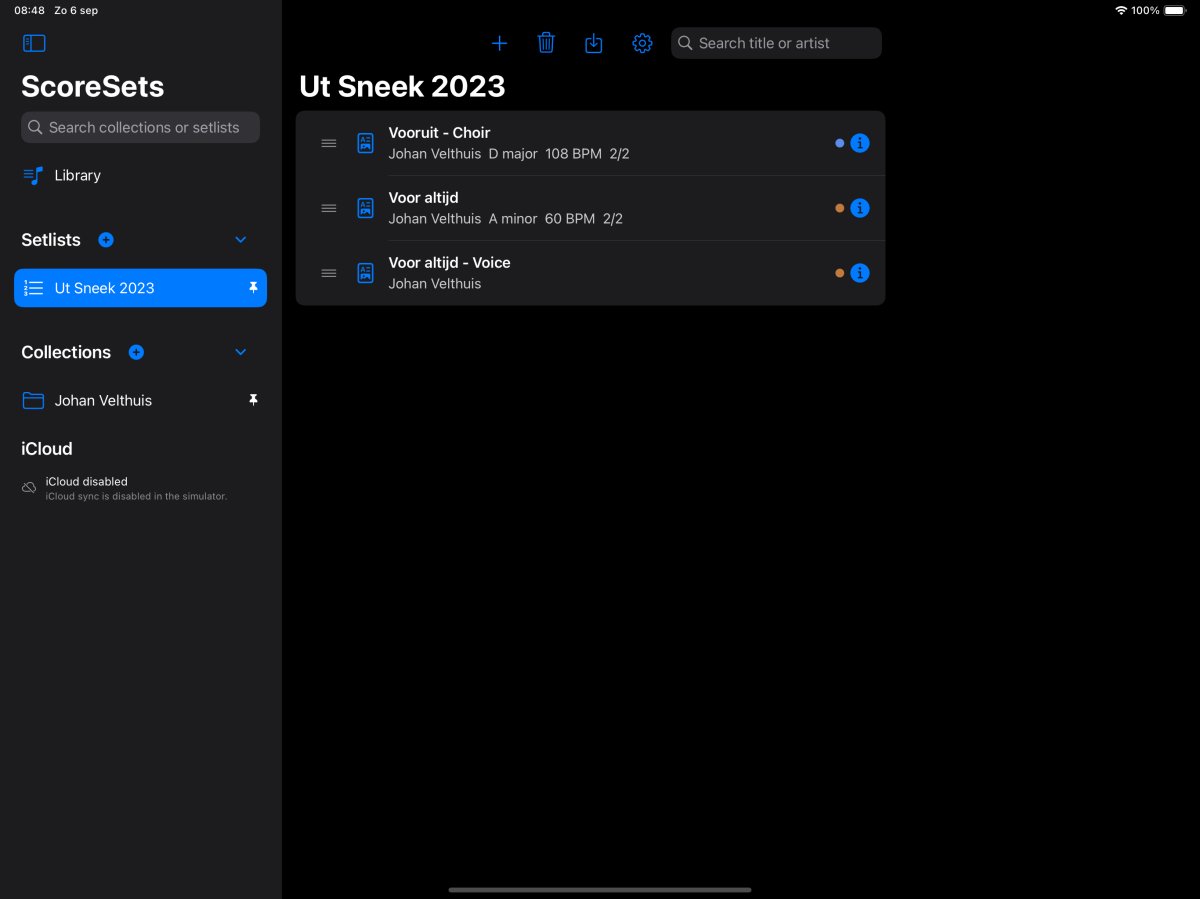
Actual app screenshot featuring original music by Johan Velthuis, used with permission. iCloud is disabled in this simulator; this image does not demonstrate cloud synchronization.
The essentials, done thoughtfully.
Organize your repertoire into collections for each band, choir or project. Build, reorder and duplicate setlists; search by title or artist; and keep key, tempo, time signature and colored tags with each song.
Write with Apple Pencil or your finger, choose colors and stroke widths, and keep your notes on separate, hideable layers. The original PDF stays unchanged.
Tap or swipe to turn pages. Place navigation buttons at repeats, and move between songs at the boundaries of a setlist. The reader remembers where you were and its toolbar can stay out of the way.
Controls on the score
Place navigation, labeled MIDI, OSC, backing-track transport and visual metronome controls exactly where you need them. Select a button in edit mode to move it, change its properties or remove it. Transport and metronome controls can appear in the same place throughout a document.
A compact, scrollable piano keyboard with an acoustic piano sound helps you check a note or practice a phrase. For a darker stage, invert the score colors or use incoming OSC dim-level control.
In the next update: ScoreSets 1.1
The following improvements have been submitted for App Store review and are not yet part of the public 1.0 release.
A metronome for a quick rehearsal check
Open the new Metronome popup beside the piano in the reader toolbar. Set 20–300 BPM with minus/plus, the slider or Tap tempo; start the visual pulse and switch the audible click on or off. Close the popup to stop it.
Practice at any tempo without changing the song. Use song tempo copies the song’s BPM into the tool; Set song tempo to current explicitly saves your chosen BPM to the song metadata and its normal iCloud sync. Other metadata stays unchanged.
Straight to your files
Import opens the iPad Files picker directly, with iCloud Drive and enabled providers such as Dropbox. The separate forScore importer moves to Settings → General → Library import → Import from forScore.
Hands-free page turns and clearer navigation
Use Bluetooth or iPad-compatible USB pedals in keyboard mode, with configurable previous/next keys and a Learn function. An optional in-app keyboard lets you search while a keyboard-mode pedal is connected. Compatibility depends on the device and mode; not every pedal model has been tested.
Incoming OSC can select previous/next pages or a specific song, setlist entry and page, alongside MIDI navigation. A slim fullscreen bar shows time, battery, current page and next song; an optional red edge marks the final PDF page. Tapping the current title opens its setlist, and returning to the library highlights the song you were reading.
Your score, clearly in view.
Read the original PDF with a compact toolbar that can disappear when you need an unobstructed page. The piano keyboard is one tap away when you want to check a note.
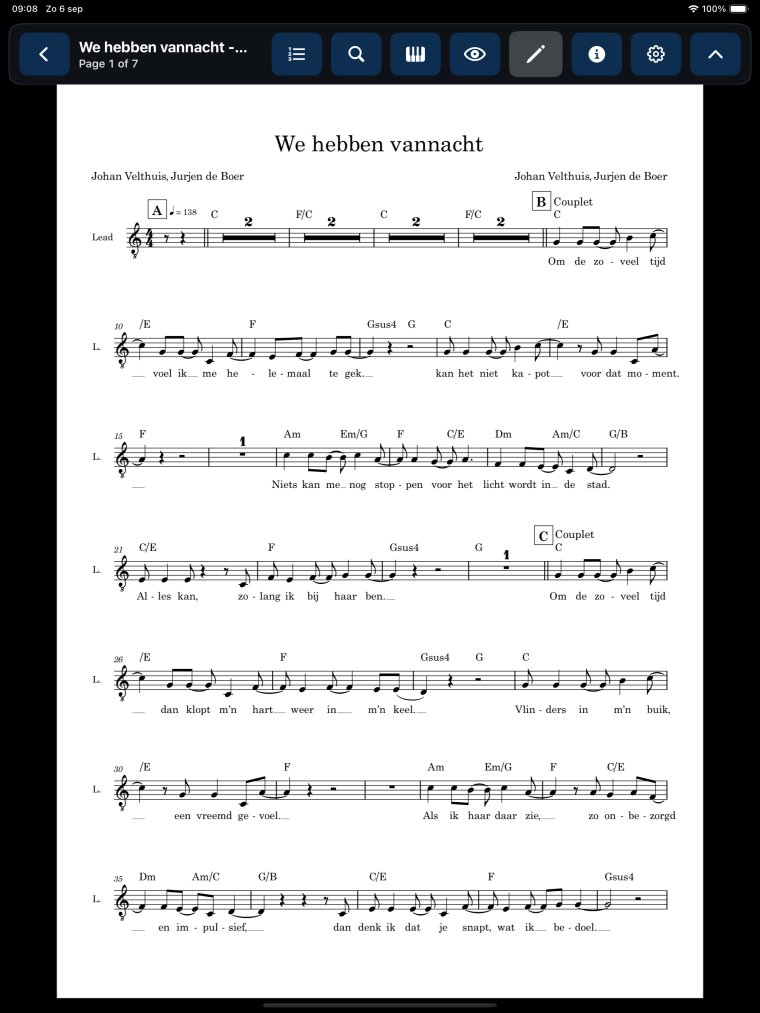
Actual app screenshot of a Dorico score from Johan Velthuis’s own repertoire, used with permission. We hebben vannacht is credited to Johan Velthuis and Jurjen de Boer. The source PDF is unchanged and is not bundled with the app.
Bring the music you already have.
Import PDFs through the iPad Files picker, including iCloud Drive and enabled providers such as Dropbox. Downloaded scores remain available without an internet connection.
Moving from forScore? Select a supported backup or exported library folder and choose what to bring across. Original annotation images can be displayed as separate layers. ScoreSets does not modify your forScore library.
In the upcoming 1.1 update, use Settings → General → Library import → Import from forScore. The regular import button will go straight to the Files picker.
Import compatibility depends on the backup format. Keep your original backup and check the imported music before relying on it at a performance.
Keep your iPads in step.
Use your own iCloud account to synchronize scores, annotations, metadata, collections and setlists between your iPads. No separate ScoreSets account is required.
Synchronization needs iCloud, available storage and an internet connection. Before a show, open your setlist on the backup iPad and check that its files and latest annotations have arrived. Offline changes cannot reach another device until it reconnects.
Support & getting started
Need help with ScoreSets? Email info@jv.nl or use our contact page. Include your iPad model, iPadOS version, ScoreSets version and a short description of what happened. Please do not send your private scores unless they are needed and you have permission to share them.
What do I need?
An iPad running iPadOS 16 or later and your own PDF sheet music. Apple Pencil is optional. Cloud providers, iCloud synchronization and external MIDI/OSC devices have their own account, network or compatibility requirements.
How do I add my music?
Open Repertoire, a collection or a setlist and use the import control. In the Files picker, choose your PDFs from local storage or an enabled cloud provider. When importing into a setlist, the songs are also added to your repertoire.
How do I use the new practice metronome?
Coming in 1.1: open a song and tap Metronome beside the piano. Adjust the practice tempo, toggle Sound and press Start. Use Set song tempo to current only when you want to save that BPM in the song.
Does it open MusicXML?
Not in the first release. ScoreSets currently focuses on PDF sheet music.
Are scores or backing tracks included?
No commercial score, lyrics or backing-track library is included. You supply your own repertoire and are responsible for having the rights to use it. The bundled Interactive Quickstart contains project-created teaching examples to explain the app; the built-in piano uses CC0 single-note samples. Website screenshots show original works from Johan Velthuis’s own repertoire, used with permission; those repertoire scores are not bundled with the app.
Is it a subscription?
No. ScoreSets is a one-time App Store purchase, with a Netherlands price of €10.00. Local prices may vary. View ScoreSets on the App Store.
Privacy
Read the JV Multimedia privacy policy. ScoreSets stores your repertoire on your iPad and, when synchronization is enabled, in your private iCloud database. The app does not require a separate developer account.
Optional MIDI, OSC, the Mac bridge and API control communicate with the devices you choose on your local network. Enable these features only on a network you trust. Cloud file providers and Apple services are also governed by their own privacy terms.
Download ScoreSets Bridge for Mac
Connect ScoreSets to MainStage through a small menu-bar companion. ScoreSets Bridge creates a virtual MIDI source and is automatically discovered by the iPad app on your trusted local network.
Download ScoreSets Bridge 1.0 for macOS (ZIP, 1.8 MB)
The ZIP includes the app and installation instructions. The companion is available now; get ScoreSets for iPad on the App Store.
Connect to MainStage
- Unzip the download, move ScoreSets Bridge to Applications and open it. Quit an older Bridge first if it is running. Look for the Bridge in the Mac menu bar.
- Put your Mac and iPad on the same trusted network and allow local-network access when asked.
- In ScoreSets on your iPad, open the MIDI/OSC Bridge settings and activate the discovered Mac. This choice is remembered.
- Choose the virtual MIDI source named ScoreSets Bridge for the MainStage MIDI input/control routing that should receive the commands. Set the desired bank/program selection for your patches.
- Use Execute in a song's MIDI metadata settings to test the command. Keep the Bridge running while you perform.
No manual macOS Network MIDI session is needed. Network isolation or firewall rules can prevent discovery. The Bridge currently relays MIDI from iPad to Mac; it is not a bidirectional MIDI interface. Optional OSC forwarding sends argument-free messages to the configured destination.
Use only on a private network you trust. Activating a Bridge also enables its local API relay for compatible scripts or AI agents on the Mac. Do not expose it to the public internet.